> For the complete documentation index, see [llms.txt](https://docs.emaillabs.io/llms.txt). Markdown versions of documentation pages are available by appending `.md` to page URLs; this page is available as [Markdown](https://docs.emaillabs.io/en/first-steps/security/two-factor-authentication-2fa.md).
# Two-Factor Authentication (2FA)
Two-factor Authentication (2FA) is an additional layer of security that protects your account from unauthorized access. Once activated, each user will be required to enter a one-time verification code sent via a selected channel.
{% hint style="warning" %}
Important: For all newly created accounts, 2FA verification via SMS is enabled by default for security purposes. The following guide explains how to manage and customize these settings.
{% endhint %}
### **Activation and Configuration**
1. Navigate to the **Account** > **Settings** > **Security**’ tab.
2. Find the **Two-factor Authentication (2FA)** section and ensure the feature is active.
{% hint style="info" %}
Please note that 2FA settings are global. This means the selected verification methods will apply to all users on your account.
{% endhint %}
### **Choosing Verification Methods**
You can select one or more channels to receive your verification codes. The available options are:
* **SMS** – a code sent to the user's phone number.
* **App** – a code generated in an authenticator app (e.g., Google Authenticator, Microsoft Authenticator, Authy).
* **Hardware security key** – verification using a U2F hardware security key (e.g., YubiKey).
You can configure the methods by selecting:
* just one preferred option (e.g., only App),
* two options, including SMS as a primary or backup method (e.g., App and SMS).
{% hint style="info" %}
### **Important Information for Administrators**
* After selecting the **SMS** option, the system will verify if all users on your account have a phone number assigned. A notification about any missing numbers will appear only when this method is active.
* If SMS verification is enabled on the account, the **Phone** field becomes mandatory when creating a new user.
{% endhint %}
* After selecting the **SMS** option, the system will verify if all users on your account have a phone number assigned. A notification about any missing numbers will appear only when this method is active.
* If SMS verification is enabled on the account, the **Phone** field becomes mandatory when creating a new user.
### **Remembering Trusted Device**
Decide how long the system should trust the device you are logging in from. After this period, you will be required to enter a 2FA code again.
* Single sign-on
* 1 Day
* 1 Week
* 30 Days
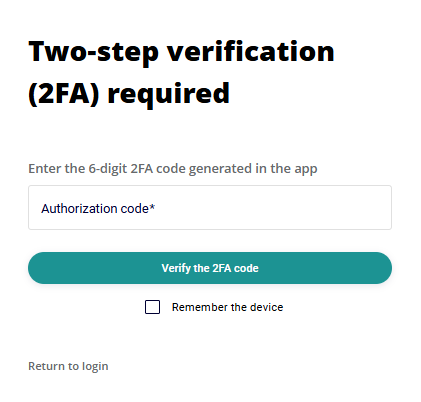
After configuring your settings, click the **Save** button. During your next login, you will be prompted to enter a verification code according to your selected methods.