> For the complete documentation index, see [llms.txt](https://docs.emaillabs.io/llms.txt). Markdown versions of documentation pages are available by appending `.md` to page URLs; this page is available as [Markdown](https://docs.emaillabs.io/en/email/sender-security/senders-authorization/generating-and-adding-dns-records/domain-authorization-in-cyber_folks.md).
# Domain Authorization in cyber\_Folks
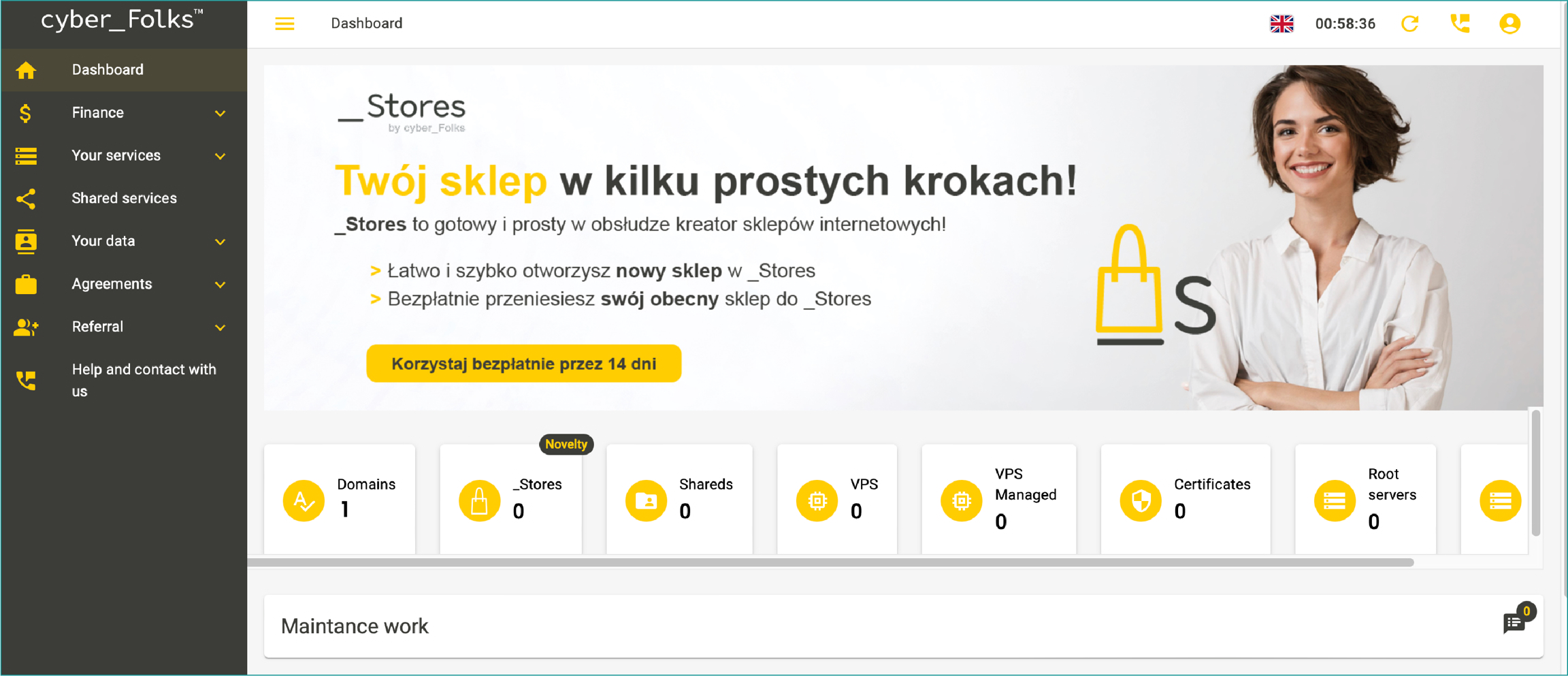
* Log in to the Customer Panel on the cyber\_Folks service.
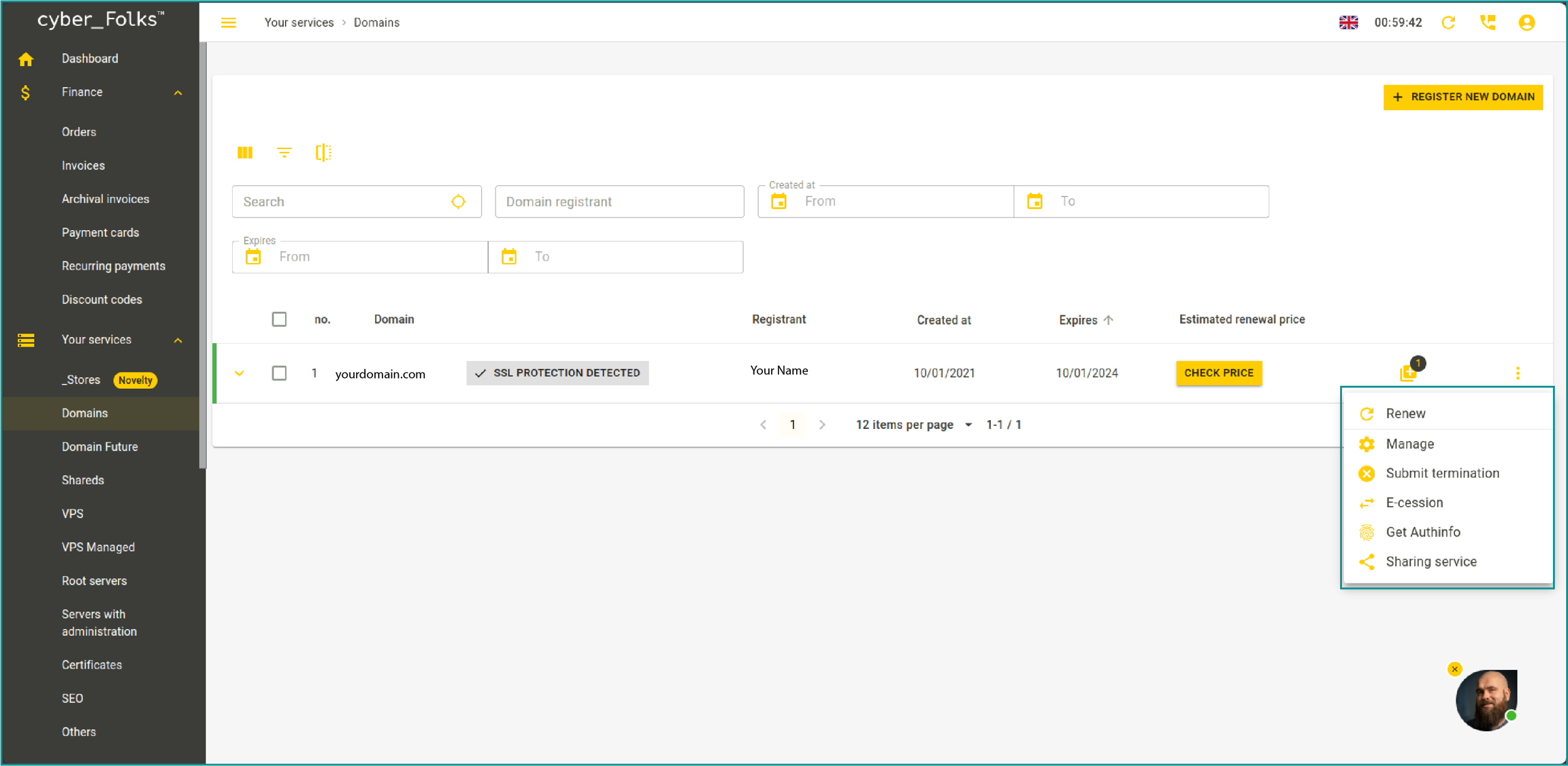
* Click on the “Domains” option to view your active domains.
* Select the domain where you wish to configure the sending domain.
* From the drop-down menu on the right, click on 'Manage'.
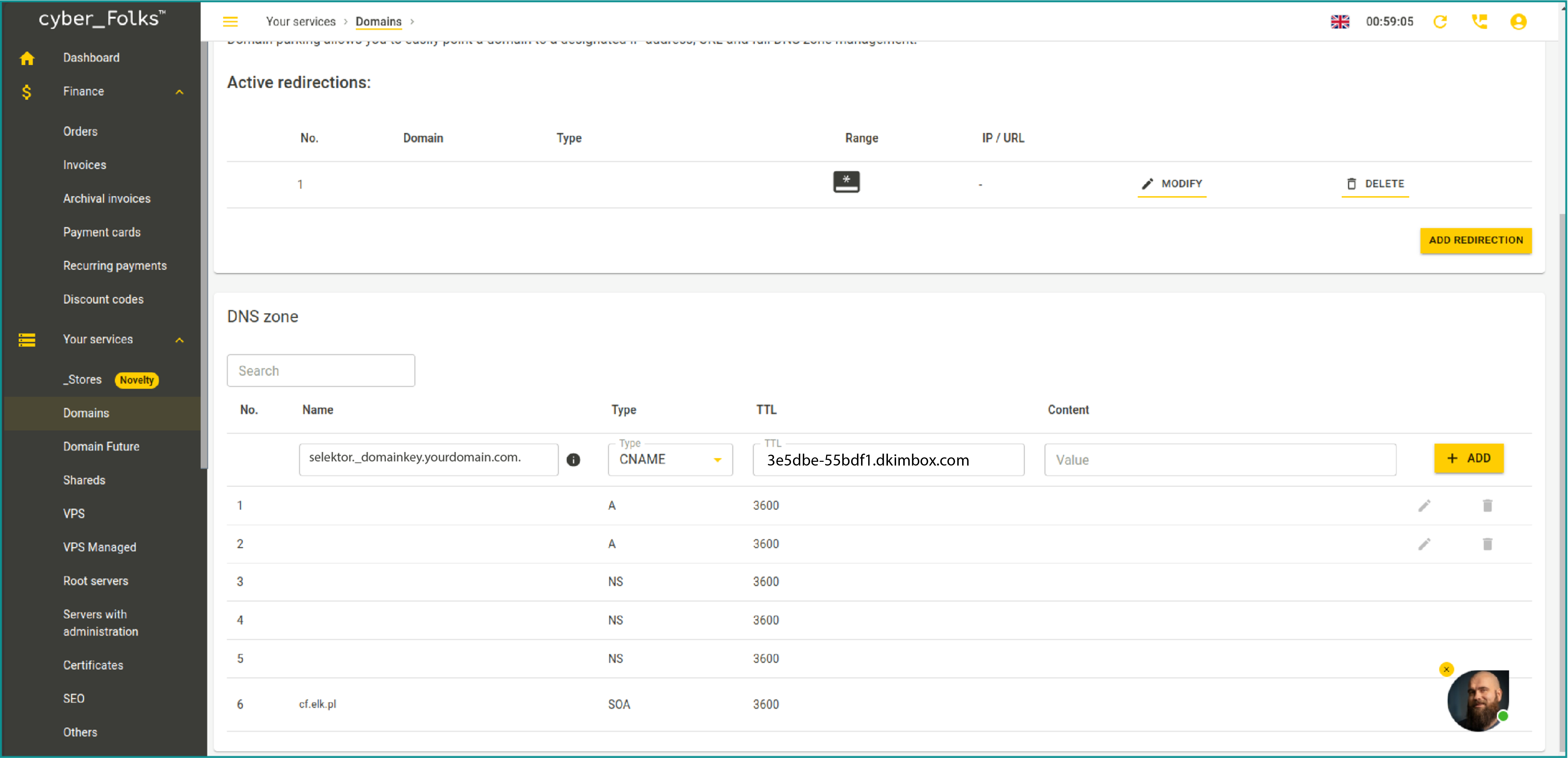
* In the 'Name' field, enter `selektor._domainkey.yourdomain.com.` Ensure you end the value with a dot (”.”).
* Set the record type to 'CNAME'.
* In the 'Content' field, enter the appropriate value generated in the EmailLabs panel.
NOTE! The domain entered in the ‘Value’ field is generated individually based on the version of the EmailLabs panel.
* Click ‘Add’ to update the record.
* Wait for the DNS system to validate the changes. This may take anywhere from a few minutes to up to 24 hours, depending on the DNS propagation time.
* To verify the DKIM configuration, click the 'Verify' button in the EmailLabs panel. If the status changes to 'Verified', the authorization process has been successfully completed.
{% hint style="info" %}
If you need further assistance or detailed guidance, please contact your hosting provider’s Support Team for additional instructions.
{% endhint %}