> For the complete documentation index, see [llms.txt](https://docs.emaillabs.io/llms.txt). Markdown versions of documentation pages are available by appending `.md` to page URLs; this page is available as [Markdown](https://docs.emaillabs.io/en/email/sender-security/senders-authorization/generating-and-adding-dns-records/domain-authorization-in-godaddy.md).
# Domain Authorization in GoDaddy
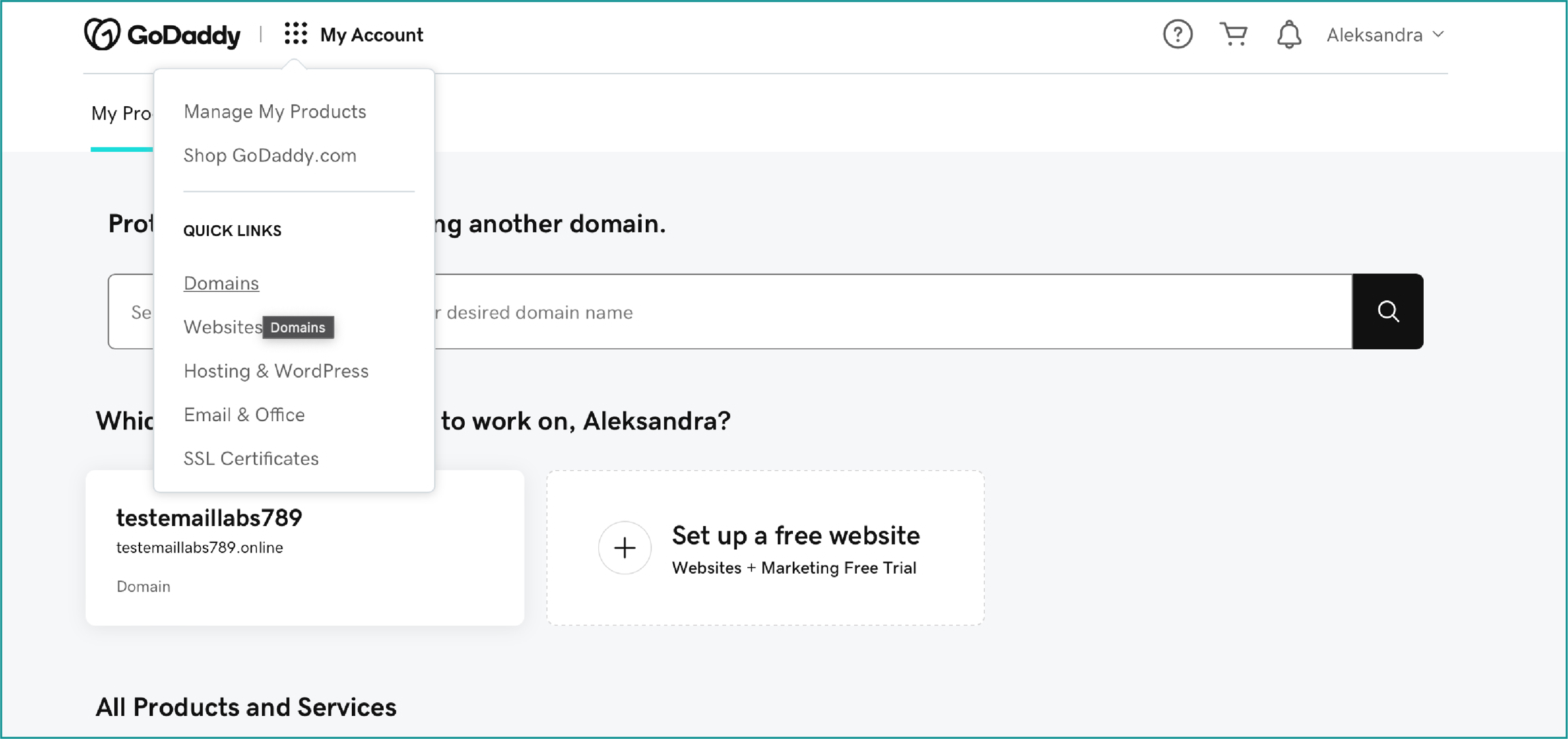
* Log in to your GoDaddy customer panel.
* From the 'My Account' dropdown menu, select the ‘Domains’ tab.
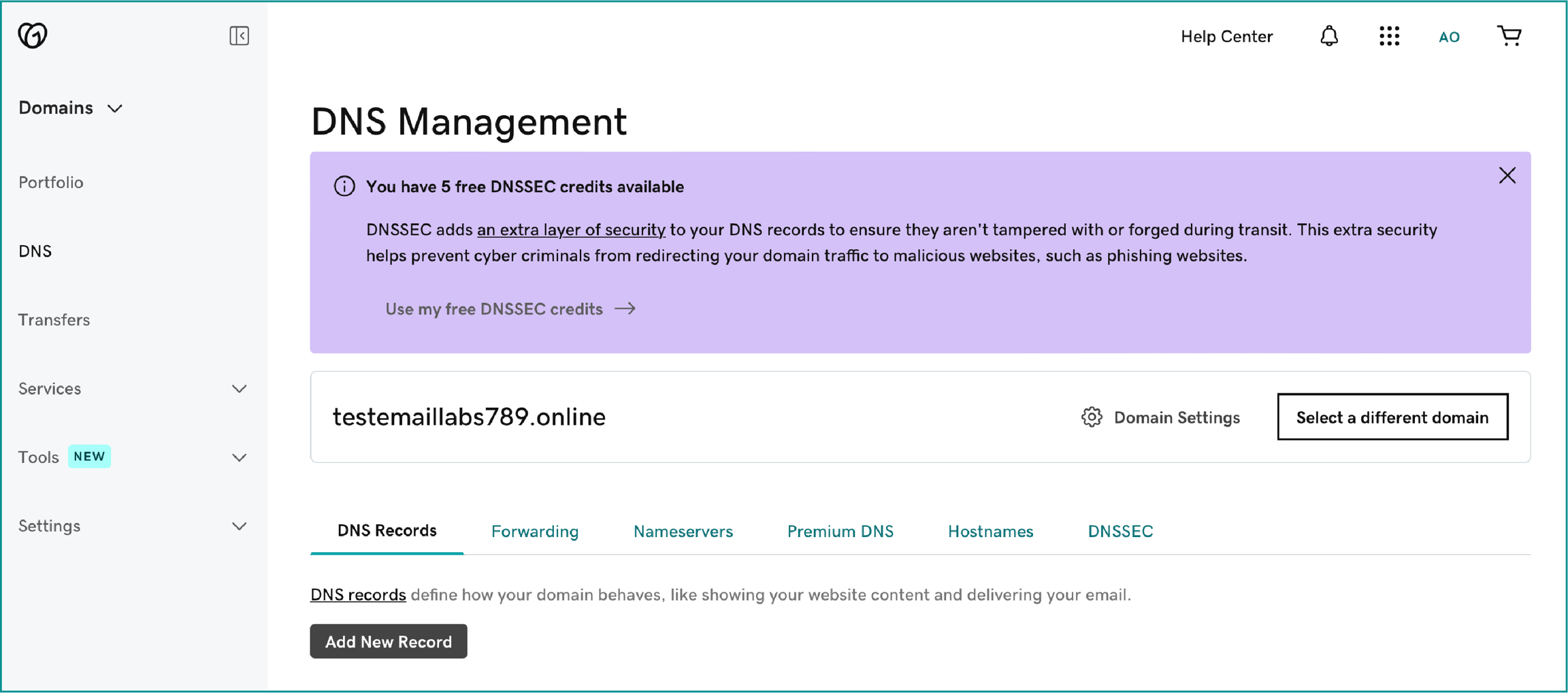
* Choose the domain you want to authenticate and access its settings.
* In the left-hand menu, navigate to the ‘DNS’ tab to view your current records.
* Click the ‘Add New Record’ button to add a new DNS record.
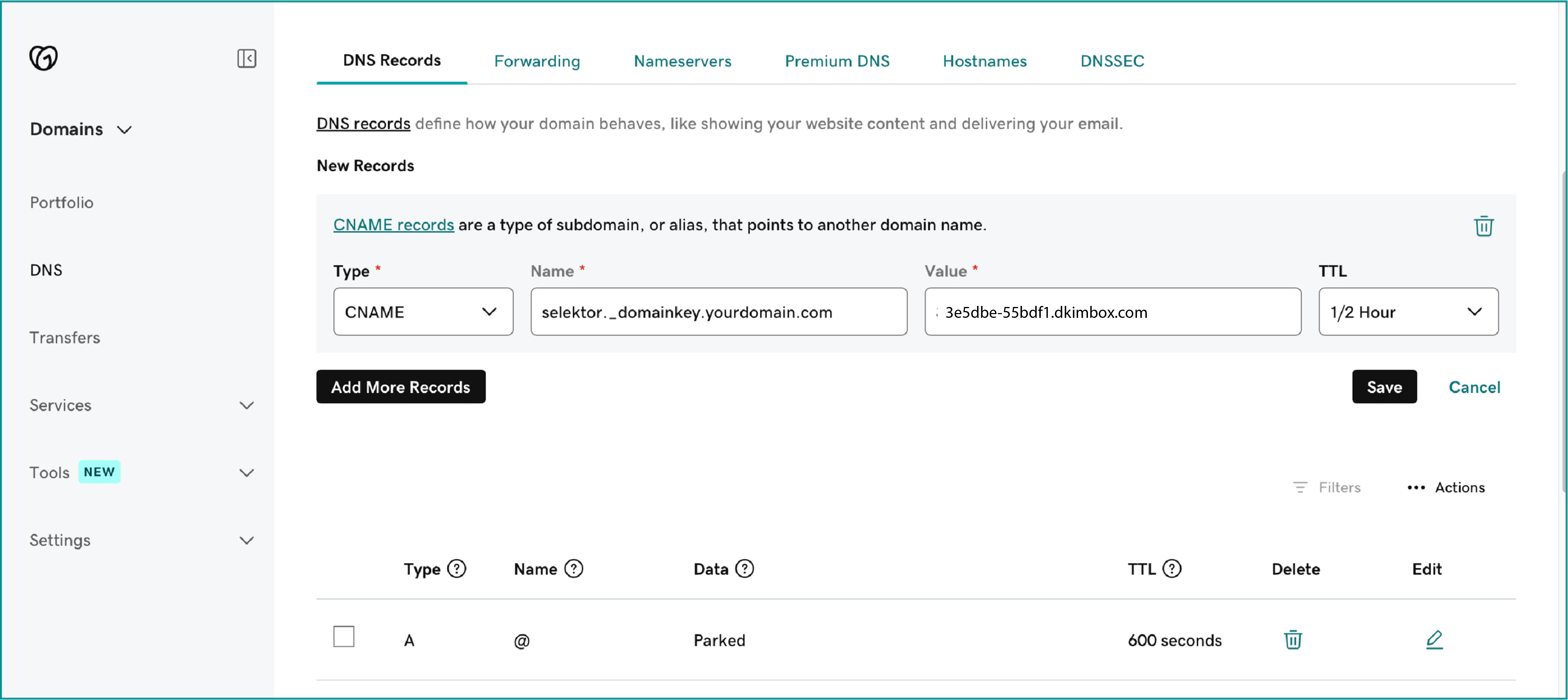
* From the ‘Type’ dropdown menu, select CNAME.
* In the ‘Name’ field, enter `selector._domainkey.yourdomain.com` (replace “yourdomain.com” with your actual domain).
* In the ‘Value’ field, input the corresponding value generated in the EmailLabs panel.
The domain provided in the ‘Value’ field is generated individually, based on the version of the EmailLabs panel.
* Click ‘Save’ to apply the changes.
* Wait for DNS system approval. Propagation may take from a few minutes to 24 hours, depending on the DNS system’s TTL.
* To verify the DKIM configuration, click the 'Verify' button in the EmailLabs panel. If the status changes to 'Verified', the authorization process has been successfully completed.
{% hint style="info" %}
If you need further assistance or detailed guidance, please contact your hosting provider’s Support Team for additional instructions.
{% endhint %}